
AI ROI Calculator in Excel: What to Check Before You Use One
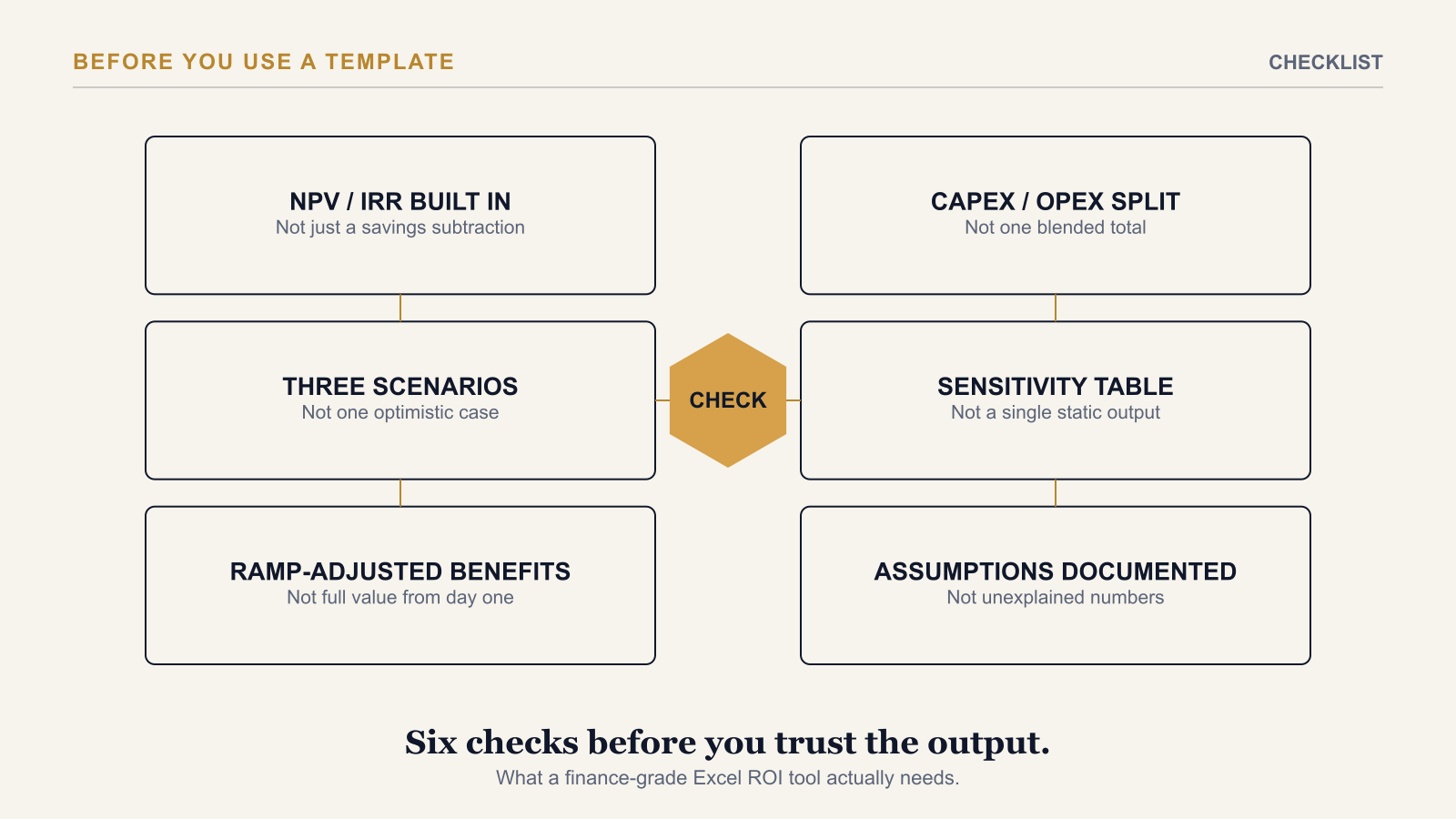
Before you use an AI ROI calculator in Excel, check that it actually builds NPV, IRR, and payback period from your inputs rather than subtracting a savings estimate from a cost figure, that it runs at least three scenarios instead of one, that it ramp-adjusts benefits instead of assuming full value from day one, and that it separates CAPEX from OPEX rather than blending them into a single total. A template missing any of these is not a shortcut — it produces a number finance will send back.
Six Checks Before You Trust the Output
NPV and IRR built in, not just a subtraction. "Savings minus cost" is not an investment appraisal — it ignores the time value of money entirely. A finance-grade template calculates NPV and IRR from a discount rate you supply, alongside payback period and a benefit-cost ratio.
At least three scenarios. A single optimistic case claims more certainty than any programme team can honestly have. Look for Conservative, Base, and Aggressive (or equivalently named) scenarios built on the same structure, not three copies of one sheet with the numbers nudged.
Ramp-adjusted benefits. AI value depends on adoption, and adoption builds over months, not instantly at go-live. A template that assumes full benefit value from Year 1 will overstate every downstream metric — NPV, IRR, and payback all inherit the error.
CAPEX and OPEX kept separate. One-time build cost and ongoing run cost sit in different budget categories and go through different approval processes. A template that blends them into a single total forces finance to do that separation themselves, using assumptions they cannot see.
A sensitivity table, not just a static output. The question a sharp finance reviewer asks right after seeing the headline numbers is what happens if the assumptions are wrong. A template without a way to flex benefit realisation and cost variance against each other cannot answer that question without being rebuilt by hand.
Assumptions documented, not buried in formulas. Every input — discount rate, ramp curve, cost estimates — should be visible and sourced somewhere in the workbook, not embedded invisibly inside a formula a reviewer would have to reverse-engineer to understand.
A Quick Red-Flag Test
If a template can produce a finished ROI figure from two inputs — a cost estimate and a savings estimate — it has almost certainly failed every check above at once. A finance-grade appraisal needs enough inputs that filling it in takes real thought: a time horizon, a discount rate, benefit figures broken out by category, cost figures broken out by CAPEX and OPEX, and at least three scenarios' worth of assumptions. A two-input calculator is a rough gut-check, useful for a first conversation, not a document ready for a finance review.
It is also worth checking who built the template and why. A vendor-provided calculator sized to make a specific product look favourable is a different document than a neutral appraisal tool — not necessarily dishonest, but worth reading with that context in mind, especially around which costs are included and which are left for "implementation details."
Which Tool, for Which Stage
This checklist is specific to the approval stage — building the business case that gets an AI programme funded. That is a different job from a post-deployment cost-monitoring tool or a vendor pricing comparator, and the three are not interchangeable. For how to tell which category of tool a given moment in the programme actually calls for, see Three AI ROI Calculators. Three Different Questions. Here Is How to Pick the Right One.
The AI Investment ROI Model is a 10-tab Excel workbook built for exactly this checklist — NPV, IRR, payback, and benefit-cost ratio auto-calculated across Conservative, Base, and Stretch scenarios, with a ramp-adjusted benefit model, a CAPEX/OPEX split, a two-variable sensitivity table, and a dedicated Assumptions Log tab documenting every input with its source.
→ Available at www.viksya.com